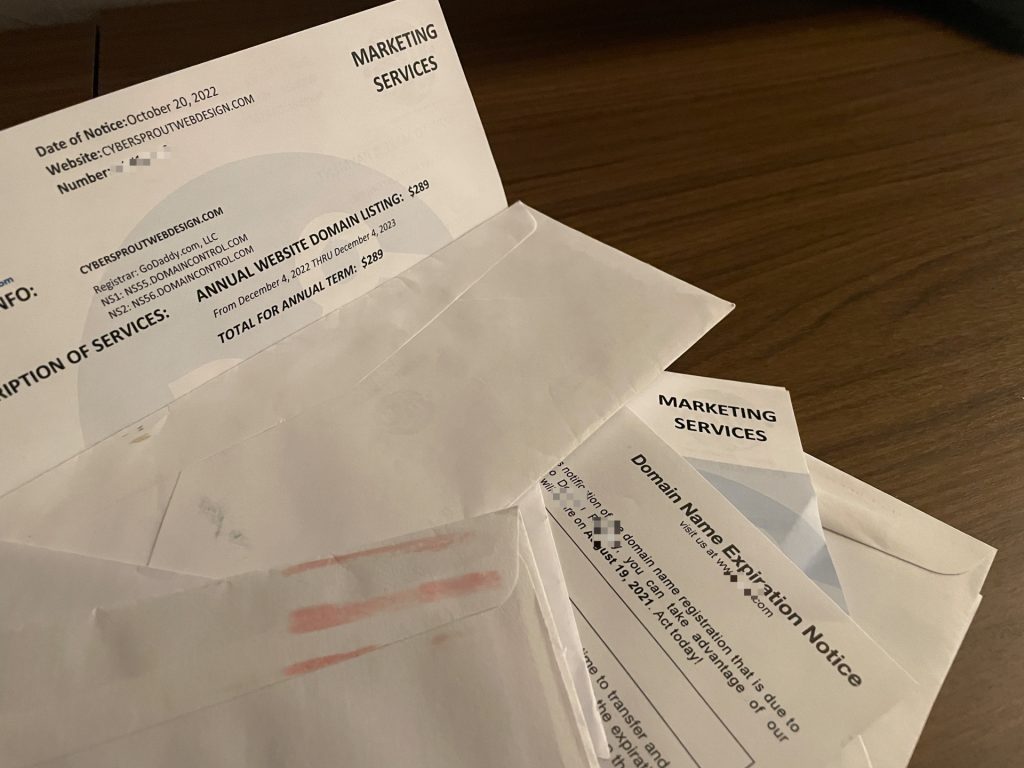
The following steps can be used to migrate a domain purchased through another provider into a GoDaddy account.
Before Starting Transfer
- Work with the current registrar to unlock the domain
- Collect the Authorization code (also called Transfer secret, EPP code, or domain transfer code) that will be needed to confirm the transfer.
Initiating Transfer
- Create a GoDaddy account by going to https://sso.godaddy.com/account/create
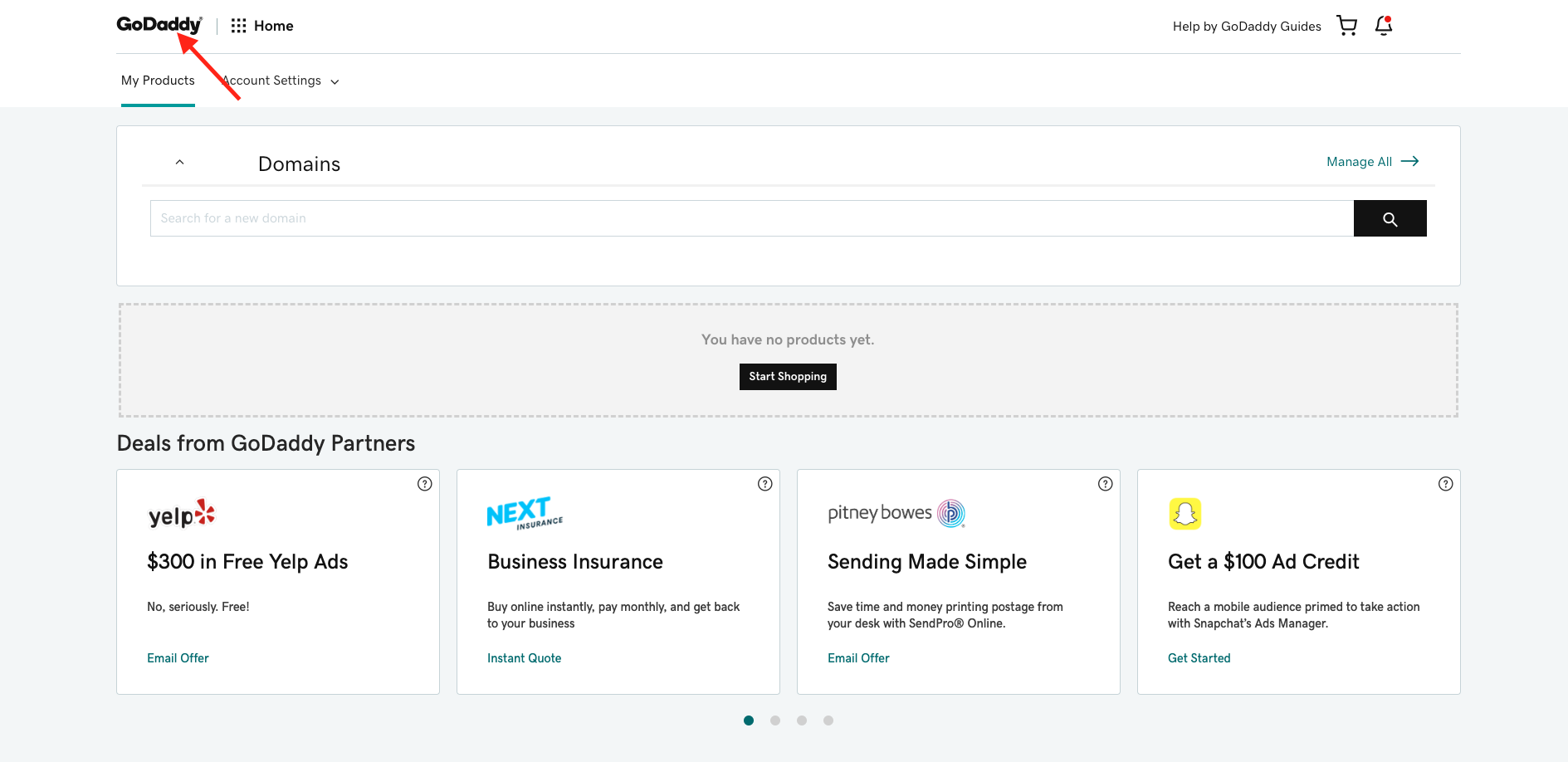
- After the account is created and from the My Products page
- click GoDaddy logo (found in the top left)

- then click Domains
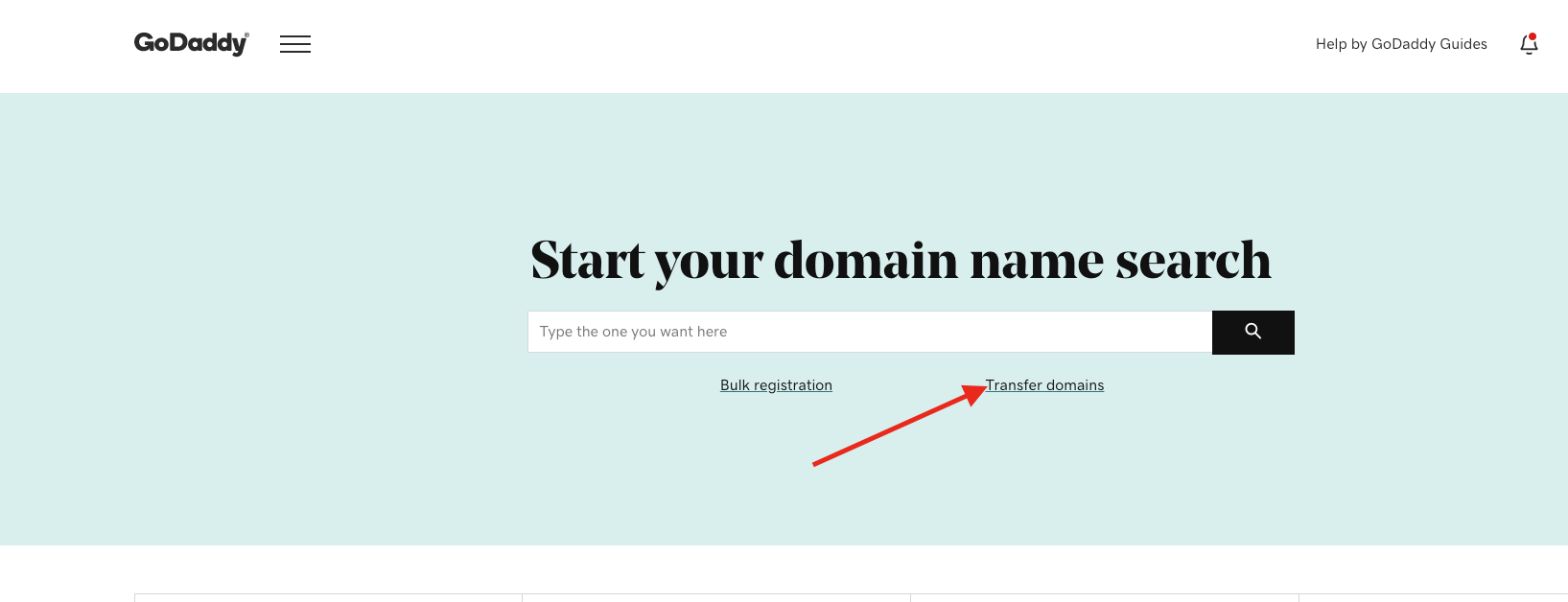
- then click Transfer Domains
- this will take you to the Domain Transfer page
- click GoDaddy logo (found in the top left)
- On the Domain Transfer page, enter the domain that you would like to transfer into your GoDaddy account. Note: leave off www and http or https text. Then click Search.
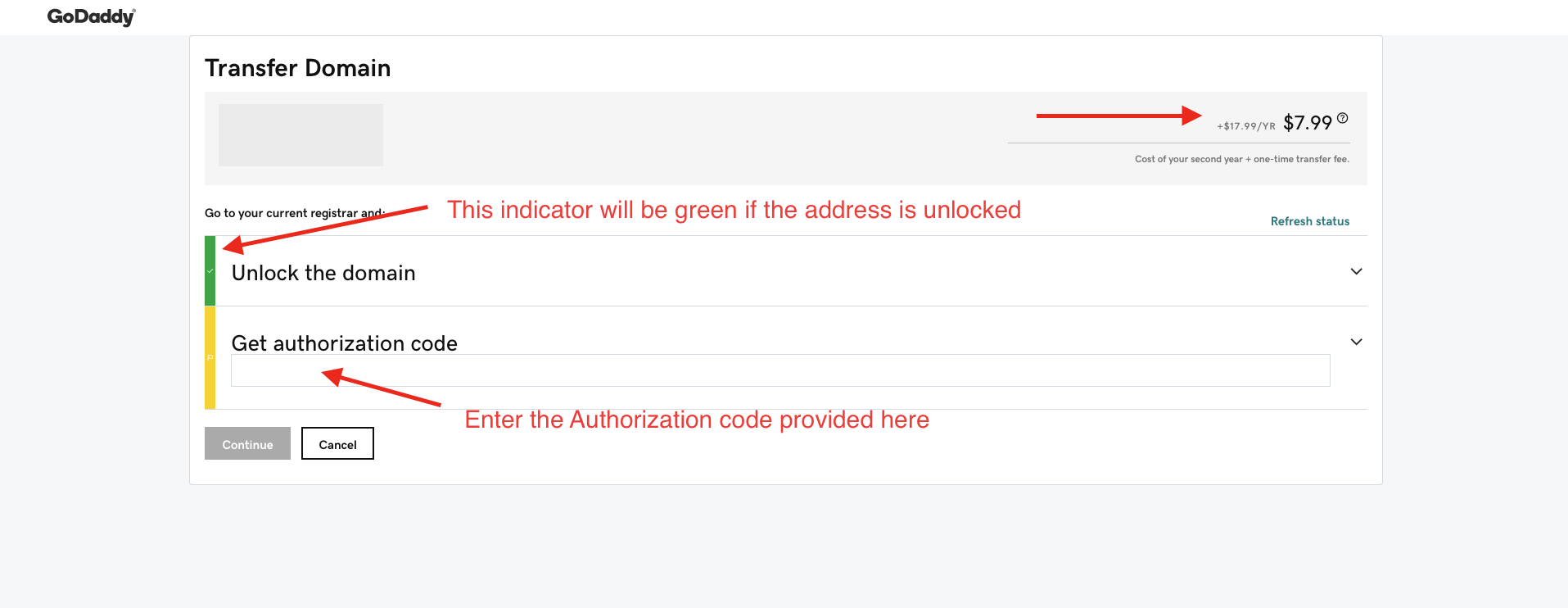
- You will be taken to the Transfer Domain page. Ensure that the indicator next to the ‘Unlock the domain’ step is green indicating that the current registrar has unlocked the domain. If it is not green, you will need to contact the current registrar to make that request again. You will also notice that the price of the domain registration will appear on the screen at this point.
- Then enter the Authorization code provided from previous registrar in appropriate field and click Continue
- The next step pertains to Privacy. We traditionally pick ‘No Thanks’ and avoid the extra cost. Feel free to make your selection and click Continue.
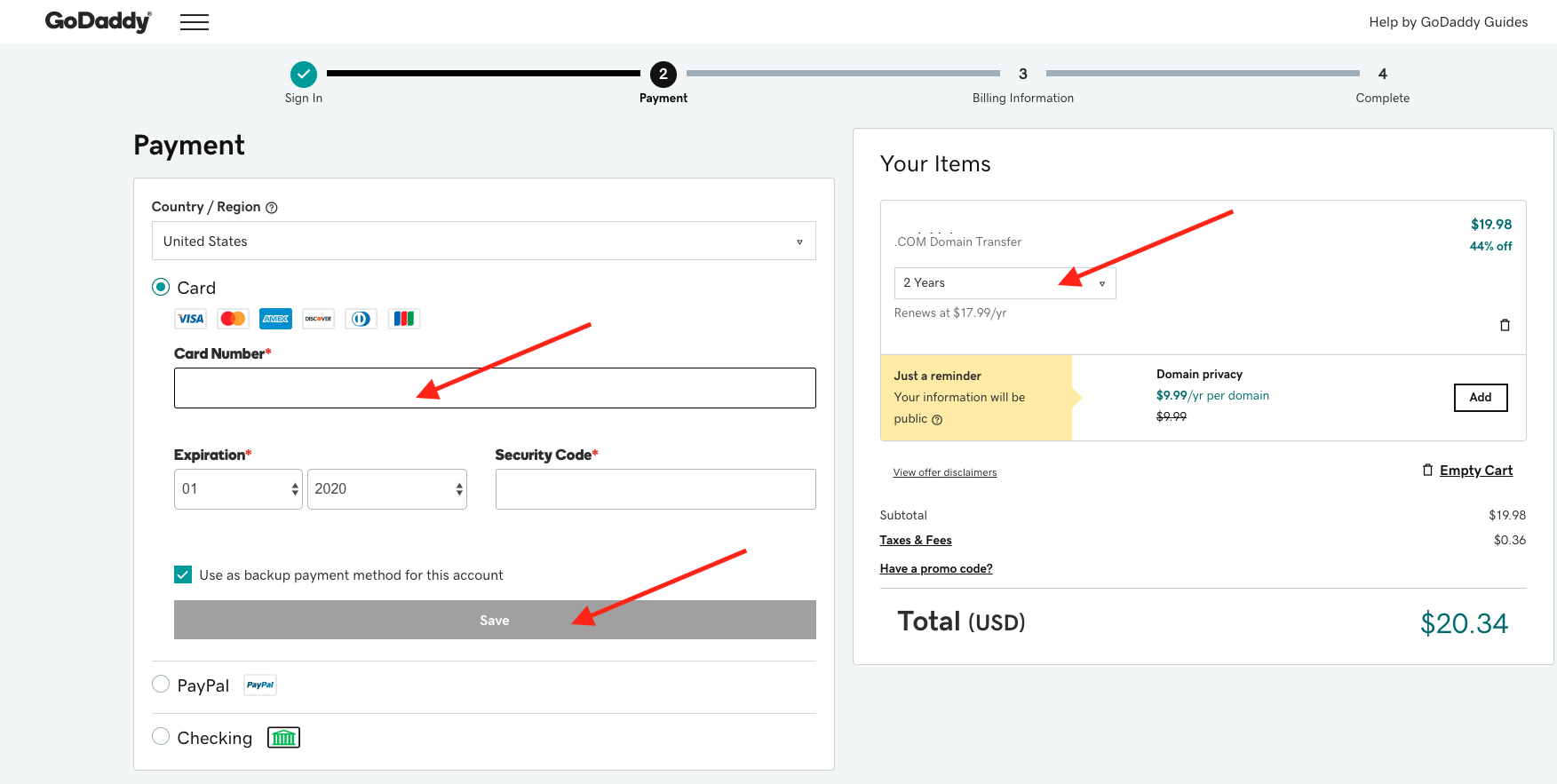
- After this, GoDaddy will walk through the payment collection steps.
- Select either the credit card, PayPal or Checking payment option and provide that detail
- Then make sure to click the Save button to confirm your payment detail
- Under the Your Items summary, review how often you would like the renewal to last. There is some additional savings in picking more than 1 year.
- Click Complete Purchase to move to the next step
- Select either the credit card, PayPal or Checking payment option and provide that detail
- If not already provided, you may be walked through providing your Billing information/address. If this has already been completed, this step will be bypassed.
- On the Complete step, you will be provided a summary of the selections made through these steps to review. If everything is in order, click Complete Purchase to finalize and initiate the transfer in.
- The transfer process may take up to 7 days to complete.


After the transfer is initiated, add CYBERsprout with delegate permission to this account so that we can assist with your website updates ( https://cybersprout.helpscoutdocs.com/article/10-giving-cybersprout-access-to-godaddy-domain).