The Beginner’s Guide to Alternative Text

By Brad Chancellor | May 14, 2024 | Strategy | Reading Time: 8 minutes
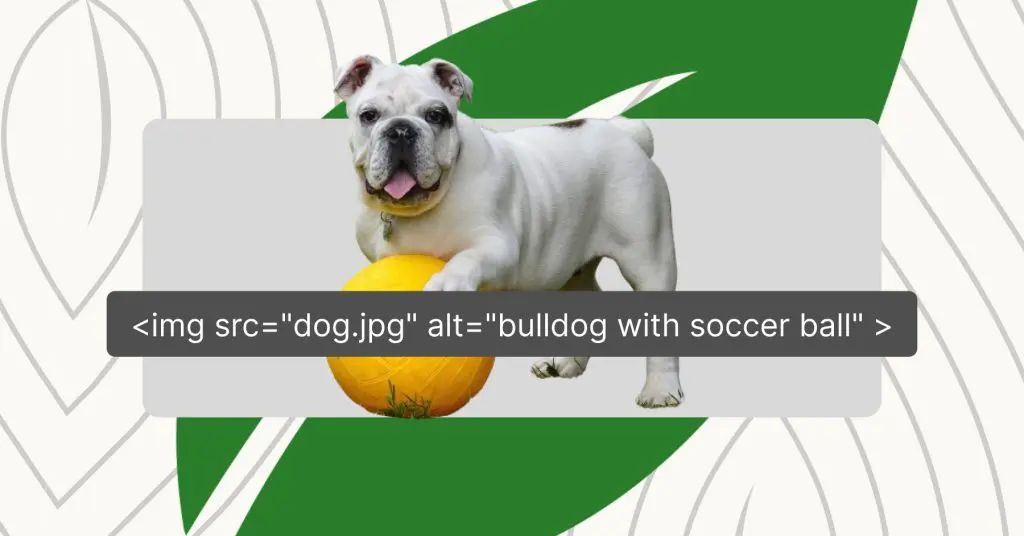
Alternative text (commonly known as alt text) is a crucial aspect of web accessibility that ensures all users, including those with visual impairments, can access and understand the content of images on websites. In this guide, we’ll explore what alt text is, why it’s important, how to write effective alt text, and best practices to follow.
Table of Contents
1. Understanding Alternative Text
Alternative text, also known as alt text, is a way to describe pictures on the internet using words. Imagine you’re looking at a website and there’s a picture, but you can’t see it for some reason. Alt text is like someone telling you what the picture is about. It’s important because not everyone can see pictures on the internet, like people who are blind or have trouble seeing. Alt text helps them understand what’s in the pictures so they can still enjoy and understand the website. It’s like adding captions to photos so everyone can know what’s going on, making the internet more friendly and inclusive for everyone.
2. How Alternative Text Works
How do screen readers interpret alt text?
Screen readers are software programs that read aloud the content of a webpage for users who are blind or visually impaired. When a screen reader encounters an image with alt text, it reads the alt text aloud to the user. This allows them to understand what the image is trying to convey even though they can’t see it. For example, if there is a picture of a dog on a webpage with alt text that reads “Golden Retriever playing fetch in a park,” the screen reader will announce this description to the user, providing them with a mental image of the scene.
What is a screen reader?
A screen reader is a software application that interprets and converts digital text into speech or braille output for users who are blind or visually impaired. It works by scanning the content of a webpage or document and then reading it aloud to the user, allowing them to access and interact with digital content through audio or tactile feedback. Screen readers can navigate through web pages, applications, and other digital interfaces, providing access to text, links, buttons, images, and other elements. Overall, screen readers play a vital role in enabling individuals with visual impairments to access and engage with content independently, giving them greater accessibility.
Watch a screen reader in action
Examples of situations where alt text is used.
- Websites: Alt text is commonly used on websites to describe images, including photographs, illustrations, infographics, and logos. This ensures that all users, regardless of their visual ability, can understand the content of the website.
- Social Media: Platforms like Facebook, Twitter, and Instagram allow users to add alt text to images they upload. This enables people who are blind or visually impaired to access and engage with the visuals shared on social media.
- Educational Materials: In online learning platforms, alt text is used to describe images, diagrams, and charts in materials. This ensures that all students can access and comprehend the information presented.
- E-commerce: Alt text is essential for product images on e-commerce websites. It provides shoppers with information about the appearance, features, and details of products, helping them make informed purchasing decisions.
- Email Marketing: Including alt text in email marketing campaigns ensures that subscribers using screen readers can understand the content of images included in promotional emails, newsletters, or announcements.
In all these situations, alt text plays a crucial role in making digital content accessible to everyone, regardless of their visual abilities, thus promoting inclusivity and equal access to information on the web.
3. Alt Text Best Practices
Descriptive vs. Decorative images: Understanding the difference.
Descriptive images are those that convey important information or contribute to the understanding of the content on a webpage. They include photographs, charts, graphs, and illustrations that are relevant to the surrounding text. Alt text for descriptive images should provide a concise and accurate description of the image content, focusing on conveying its purpose or meaning to users who cannot see it.
On the other hand, decorative images are purely aesthetic and do not add any meaningful content or context to the webpage. Examples include background images, spacer images, or purely decorative icons. Alt text for decorative images should be empty or contain a brief note indicating that the image is decorative and does not convey any important information.
Guidelines for writing effective alt text.
Be Descriptive but Concise: Provide a brief and accurate description of the image content. Focus on the essential information without unnecessary detail.
Contextual Relevance: Ensure that the alt text is relevant to the surrounding content and provides context for the image. Consider how the image relates to the text and what information it adds to the user’s understanding. For example, a photo of a dog using your brand’s water bowl, the Super Bowl, could read; dog drinking water from Super Bowl in yard.
Avoid Redundancy: If the surrounding text already describes the image adequately, the alt text can be more concise or even omitted for descriptive images. However, decorative images should always have empty alt text to avoid redundancy.
Use Keywords Sparingly: While it’s essential to include relevant keywords in alt text for SEO purposes, avoid keyword stuffing. Alt text should prioritize the user over your need for keyword optimization.
Consider Tone and Language: Adapt the tone and language of the alt text to suit the website and the target audience. Use clear and straightforward language that is easy to understand. Make sure that the language fits with the way you want your brand represented.
Provide Additional Context if Necessary: For complex images or those with multiple elements, consider providing additional context or explanations within the surrounding text.
4. Common Mistakes to Avoid
Blank alt text.
One of the most common mistakes when managing alt text is leaving the alt attribute empty or providing no alt text at all. Blank alt text gives no useful information to users who depend on a screen reader, leaving them unaware of what the image is conveying. This can make your site much less accessible and frustrate users with visual impairments who depend on alt text to understand your web pages.
Redundant alt text.
Another mistake to avoid is providing alt text that duplicates other text already conveyed somewhere else on the page. Redundant alt text not only wastes users’ time but also adds unnecessary clutter to their experience. Alt text should complement the surrounding content by providing additional information or describing the image in more detail, rather than restating what is already there.
Overstuffing with keywords.
While including relevant keywords in alt text is important for search engine optimization (SEO), overstuffing alt text with keywords can detract from its main purpose, usability and accessibility. Alt text should prioritize being clear and accurate over keyword optimization, ensuring that it effectively describes the content and context of the image for users who cannot see it. Keyword stuffing can make alt text sound unnatural and confusing, potentially leading to a poor user experience for both screen reader users and sighted users alike. All this can combine to hurt your SEO performance as users disengage from your site. User page metrics play a critical role in the ranking of your page and website.
By avoiding these common mistakes and adhering to best practices for alt text implementation, website owners can ensure that their content remains accessible for all users, seeing or non-seeing.
5. Tools and Resources for Creating Alternative Text
Image editing software features.
Many popular image editing software such as Adobe Photoshop, GIMP, and Canva offer features to help users create alt text for images. These tools allow users to add alt text directly to images during the editing process, ensuring that it is included when the image is uploaded to a website.
Automatic online alt text generators.
Looking for a little help creating your alt text and want to ensure that alt text is populated for every image uploaded to the media library? CYBERsprout clients have access to our automatic alt text generator, powered by artificial intelligence (AI), that quickly analyzes the content of your images and then populates an extremely accurate description. This tool also allows you to manually override its suggestions in cases where you want more finite control. The tool also takes into consideration the SEO objectives of the page(s) where the image is utilized to and automatically optimizes its recommendation to include relevant keywords.
Contact our team for more information about this alt text service >
Browser extensions for testing accessibility.
Browser extensions offer a convenient way to test the accessibility of web content, including the implementation of alt text. Extensions such as WAVE Evaluation Tool, axe Accessibility Checker, and A11y – Accessibility Inspector provide developers and content creators with tools to identify accessibility issues, including missing or poorly written alt text. These extensions can analyze web pages in real-time and provide feedback on accessibility issues, allowing users to make necessary improvements to ensure compliance with accessibility standards such as WCAG (Web Content Accessibility Guidelines).
6. Adding Alternative Text in WordPress
CYBERsprout websites are built using WordPress, one of the most popular content management systems (CMS). WordPress offers built-in features for adding alt text to images. Here’s how you can add alt text to images in WordPress:
Media Library: One of the most common questions we get is how to access alt text in WordPress. When you upload an image to WordPress, you’ll be prompted to add alt text in the “Alt Text” field. This field is located in the right sidebar under the “Attachment Details” section. Simply enter a brief, descriptive phrase that accurately represents the content and purpose of the image.
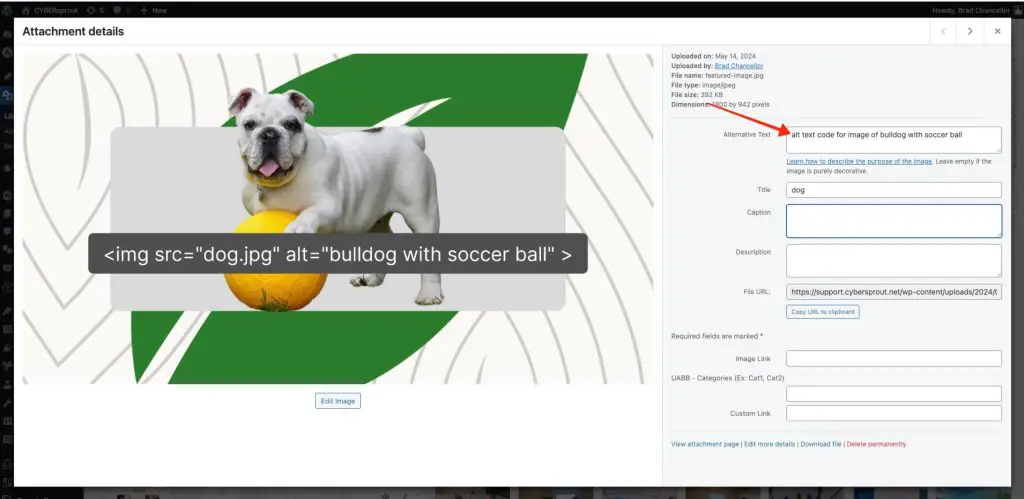
Edit Image: If you’ve already uploaded an image and forgot to add alt text, don’t worry. You can easily add or edit alt text by accessing the image in the Media Library. Click on the image you want to edit, and then click the “Edit” button. This will open the “Edit Media” screen where you can add or modify the alt text in the “Alt Text” field.
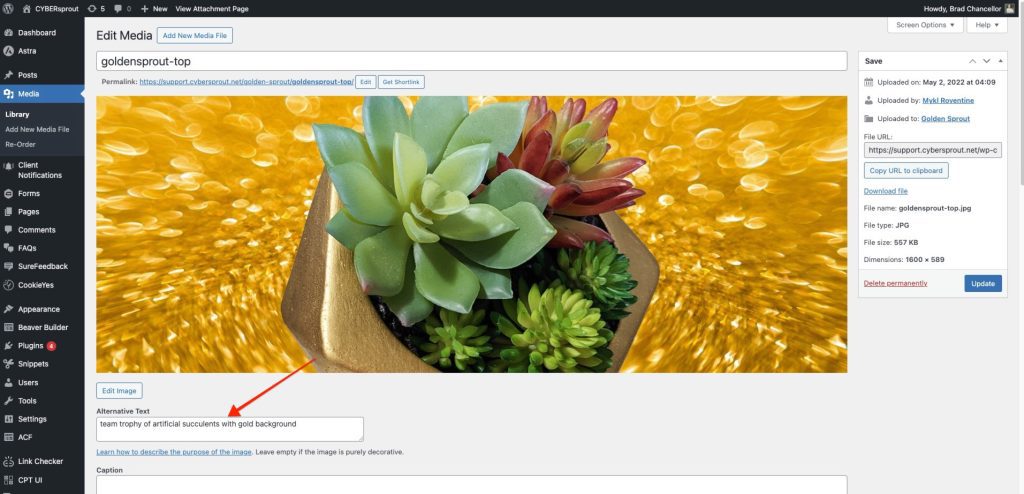
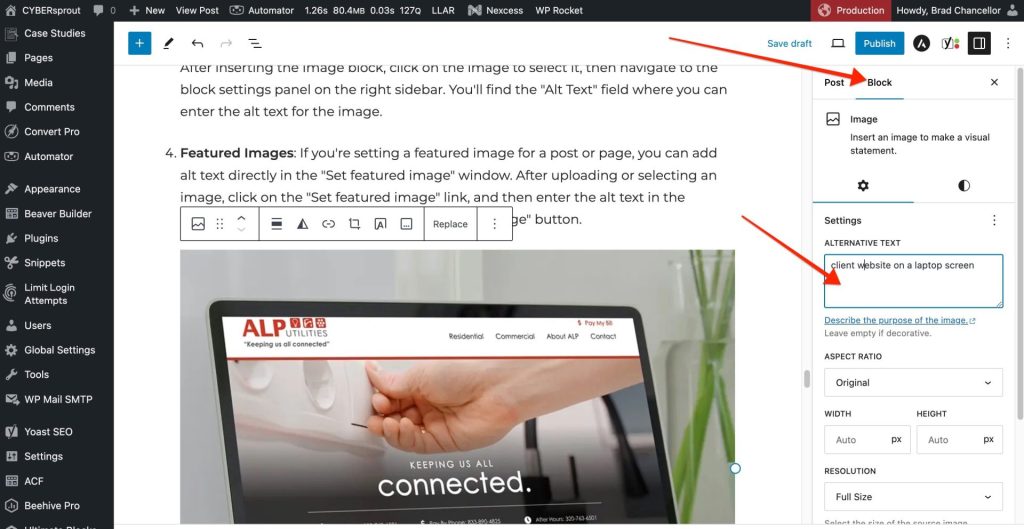
Image Block: When adding images to your WordPress posts or pages using the Gutenberg block editor, you can add alt text directly within the Image block settings. After inserting the Image block, click on the image to select it, then navigate to the block settings panel on the right sidebar. You’ll find the “Alt Text” field where you can enter the alt text for the image.
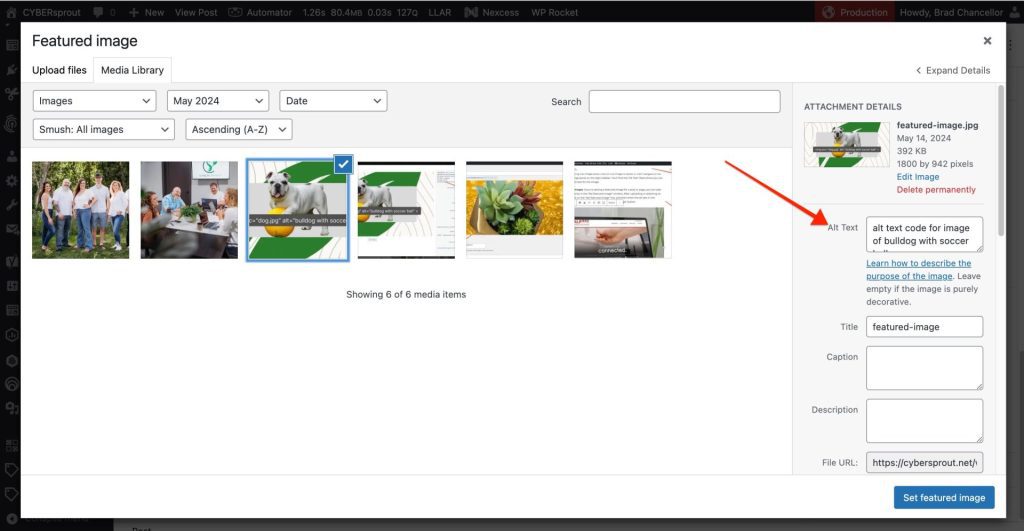
Featured Images: If you’re setting a featured image for a post or page, you can add alt text directly in the “Set featured image” window. After uploading or selecting an image, click on the “Set featured image” link, and then enter the alt text in the provided field before clicking the “Set featured image” button.
Conclusion
Understanding and implementing alternative text (alt text) is crucial for creating a more inclusive and accessible web environment. By providing descriptive alt text for images, website owners can ensure that users of all abilities can access and understand the content they’re consuming. Alt text not only benefits individuals with visual impairments who rely on screen readers but also enhances the overall user experience for everyone, including those with slow internet connections or who choose to disable image loading.
Throughout this guide, we’ve explored the importance of alt text, how it works, and best practices for writing effective descriptions. We’ve also highlighted tools and resources, such as image editing software features, online alt text generators, and browser extensions for testing accessibility, to assist you in creating and optimizing alt text for your website.
By prioritizing accessibility and incorporating alternative text into your web content strategy, you not only demonstrate a commitment to inclusivity but also improve your website’s SEO and user engagement. Remember, small changes like adding descriptive alt text can make a significant difference in someone’s browsing experience, contributing to a more accessible and equitable online community.

